Getting started
Installation
The IPS package can be downloaded via the package-management system pip. We recommend the usage of an python environment with the python version 3.10. Other versions might not currently work.
pip install ipsuite
Alternatively the latest version of IPSuite can be downloaded from GitHub, using Poetry to install the python dependencies.
git clone https://github.com/zincware/IPSuite.git
cd IPSuite
poetry install
For IPSuite to work, it is necessary for an IPS Project to be in a git as well as DVC initialized directory. Create a folder for your project and initialize git and DVC to start working with IPS.
mkdir project
cd project
git init
dvc init
In a file main.py try importing IPS to check if everything is working correctly
import ipsuite as ips
To get to know the IPS procedures we will do an example problem.
The First Project
Initial Data Generation
This project will show the basic creation of an IPS Project using an additional piece of software called Packmol. The goal is to place water molecules inside a box at a specified density.
import ipsuite as ips

with ips.Project() as project:
    # Generate a single water molecule
    mol = ips.Smiles2Atoms(smiles="O")
    # Duplicate water molecules
    packmol = ips.Packmol(
        data=[mol.frames], count=[10], density=876
        )

project.build()
The Smiles2Atoms node takes the SMILES string for water (“O”), and generates an an ASE atoms object from it. This atom from the Smiles2Atoms instance can be accessd by calling mol.atoms. This instance attribute is then handed over to the Packmol node in the data attribute. It is possible to hand over multiple different types of ASE atoms, so mol.atoms as to be given as a list. The next attribute we need to set is the amount of molecules we want to place in the box. This also has to be a list with each entry being the amount for other ASE atoms object in the data list. Lastly the density has to be provided. Calling project.build() will save the workflow into DVC graph configuration and parameter files. After executing the code, the entire workflow is constructed and can be visualised by running dvc dag, which shows the graph of the workflow. Using the option dvc dag –mermaid will return a flowchart, which can be used with Mermaid to better visualise the workflows.
The parameters files, namely params.yaml can be viewed and parameters can be changed without rerunning the python script.
By calling dvc repro the workflow consisting of the nodes is executed, which results in the generation of firstly a single water molecule by the Smiles2Atoms node and then the placement of multiple water molecules in a box by the Packmol node. After running dvc repro a new folder nodes is created which each node having their own subfolder. These folders contain the results from the Nodes.
Using the closely to IPSuite related software ZnDraw, which can be installed via pip install zndraw, we can visualise the H5MD files generated by the nodes.
zndraw nodes/Smiles2Atoms/structures.h5
will visualise the single water molecule generated by Smiles2Atoms. There will also be a H5MD file in the Packmol folder
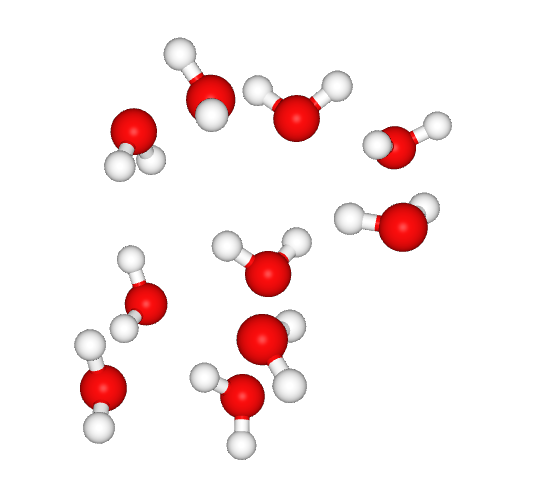
Screenshot of the ZnDraw visualistion of the Watermoluclas generated by packmol.
Now that the workflow has been created, we can change all parameters in the params.yaml at will and run dvc repro to execute the nodes with the new parameters. If dvc repro is run again without changing any parameters, no node will be executed, but the data from the cache will be loaded.